 TierCanvas
Prepare your board before recording
Start in the normal maker. Upload pictures you have permission to use, paste text items, or load an example. Decide what you are ranking and what the tiers mean. A clear question gives viewers more context than unexplained letters alone. Keep claims about health, performance, or game statistics tied to an appropriate source rather than presenting a personal opinion as fact.
A simple rehearsal topic
Apple
Banana
Mango
Expected result: Use Which fruit would I pick for a snack? as the board title. Paste the three fruit names as separate items. This creates a small opinion-based practice board, with three decisions to explain on camera.
Edit the title and tier labels while there is time to review them. Check image framing and long text labels at the size viewers will see. If you plan to repeat the session, save a reusable template now; save a version when you want to preserve an arranged result.
Enter Focus and check the visible area
- Choose Focus in the workbench toolbar, beside Export image.
- Check the title, tier rows, and Unranked pool. Focus uses the same list and history as the normal maker.
- If the browser allows native fullscreen, the workspace fills the screen. If fullscreen is unavailable or refused, the in-page Focus layout still works.
- Choose the TierCanvas corner entry to reveal the grouped controls for adding items, Undo/Redo, Settings, My Library, and Export image. Close the controls for a clean recording view. Moving the mouse or dragging an item does not continually reopen them.
Keep the pool visible when you want viewers to see the remaining choices. A long board or large pool may need scrolling; rehearse the path before recording so the destination tier is easy to reach. The clean presentation is not a second independent board and does not discard the work from normal mode.
Make a short recording rehearsal
Open your preferred screen recorder and select the intended browser window, tab, or display. Check the capture area after entering fullscreen: some recording setups follow a window while others capture the whole display. Confirm that the microphone is enabled in the recorder if you want narration. TierCanvas does not record video or audio for you.
- Record a short test: state the ranking question, move one item, explain the choice, and open the controls once.
- Play it back. Check that the title and labels are readable, the pointer is visible if you need it, and the audio is intelligible.
- Check the frame for private tabs, notifications, file names, or other material you do not want in a recording.
- Return the practice item to Unranked or use Undo, then start the real recording when the board is ready.
Rank and explain without losing your place
Drag an item into the tier that matches your explanation. You can also select an item and choose a tier, which is useful when a precise drag is awkward. Use Undo for a mistaken move and continue the discussion; you do not have to recreate the board. Keep one main reason for each placement so the ranking remains understandable.
The board title stays shared between normal mode, Focus, and image export. Choose the title to edit it, confirm with Enter, or cancel with Escape. Open Settings → Display to hide the title for presentation without deleting its name. Finish any title editing before continuing with controls that also use Escape.
Exit cleanly and keep the finished result
Escape closes the topmost open interaction first. If a menu is open, the first Escape closes that menu. If you are editing the title, Escape cancels that edit. Once those interactions are closed, Escape exits Focus; you can also use Exit Focus in its controls. Leaving Focus returns to the same working list.
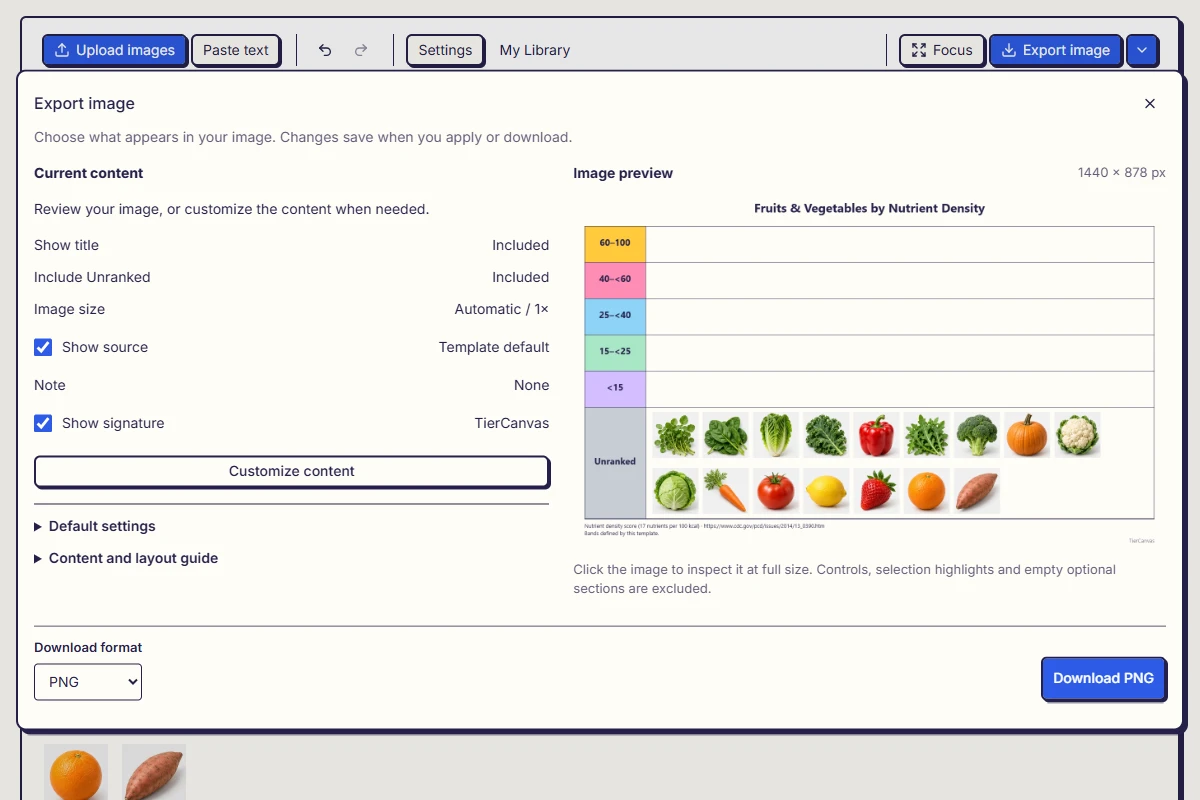
Stop the external recorder. Choose Export image in either normal mode or the Focus controls. Its preview shows the actual file. Download PNG, WebP, or JPG for a thumbnail or companion post; these are still images, without narration or an MP4 video. Check the downloaded result before publishing.
- For a simple image, keep the preview defaults. Use the Source and Signature switches to show or hide those footer details, then choose a format and Download.
- For more control, choose Customize content. Content controls the title and Unranked pool, with captions and values under Advanced options. Footer lets you edit Source, Note, and Signature. Custom text stays as entered when you change the interface language.
- Choose Apply or Download to keep changes. Returning to the preview preserves your draft without applying it; closing asks whether to keep editing or discard it. The arrow format menu downloads immediately using saved settings.
Image size starts at Automatic and 1×. Optional ratios such as 16:9 extend the outer canvas without cropping the ranking; long boards can have side padding. 2× adds pixels without rearranging content. Check the preview dimensions. If the image is too large, return to 1× or Automatic.
A sourced template supplies its own source; a custom board does not gain one automatically. Hiding a source retains it, Clear leaves it empty, and Restore template source brings back the original. The exported signature is separate from the TierCanvas corner control in Focus.
Handle interruptions and repeat the workflow
Wait for Saved in this browser. Apply or Download any export changes before saving a version of the final arrangement. If saving fails, keep the page open and download the result while checking storage. Your recording software manages the video separately; a TierCanvas version does not save it.
For another episode with the same candidates, start from a reusable template and rank again. Use a saved version only when you want a copy of a previous arrangement. Local templates and versions are not cloud backups, and clearing browser data can remove them. Keep the finished images and recording files somewhere you control.