 TierCanvas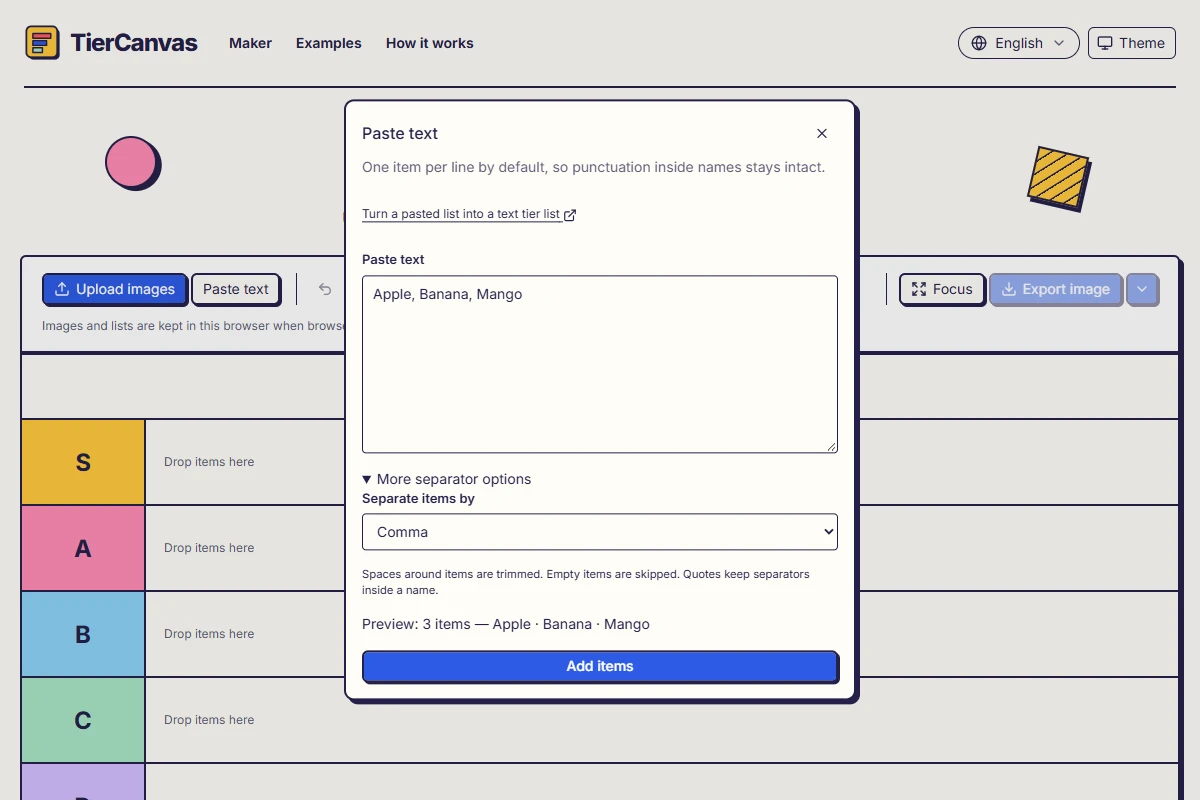
Start with one item per line
Open the maker and choose Paste text in the workbench toolbar above the board. New line is the default: each non-empty line becomes one card. This is a useful starting point for names that already contain punctuation, such as a book title with a comma. Spaces around names are trimmed, empty entries are skipped, and repeated names remain separate items.
A simple tasting list
Apple
Banana
Mango
Expected result: The preview contains three items: Apple, Banana, and Mango. Adding them puts three text cards in Unranked; it does not choose their tiers.
Use a small sample before pasting a long list. Check the first and last item, plus any name containing punctuation. The preview is your chance to correct the input without creating a board full of unwanted cards.
Split a single line with a separator
- Paste your text into Paste text.
- Expand More separator options. Under Separate items by, choose Comma, Semicolon, Tab, or Custom instead of New line.
- For Custom, enter the exact separator used between names. It is literal text, not a wildcard or a formula.
- Read the item count and sample names. Confirm the import only when the split is right.
Three comma-separated items
Apple, Banana, MangoExpected result: With Comma selected, the preview contains three cards. With New line selected, this same single line remains one card.
Match the setting to the copied text rather than replacing punctuation throughout your list. Tab can help with a row copied from a spreadsheet, but this is a list splitter: it does not map spreadsheet columns to names, descriptions, or numeric properties.
Keep a separator inside an item's name
When a name itself contains the chosen separator, wrap that field in straight double quotes. The separator inside the quotes stays in the name. Use two consecutive double quotes inside a quoted field if the name needs a literal quotation mark.
A name containing a comma
"Ice cream, vanilla", Dark chocolate, MangoExpected result: With Comma selected, this produces three items. The first item's name is Ice cream, vanilla; it is not split into two cards.
A custom separator
Apple | Banana | MangoExpected result: Choose Custom and enter |. The preview contains three items, with surrounding spaces removed.
Close every quoted field before importing. A custom separator cannot contain a double quote because that character is reserved for quoted fields.
Arrange and refine the imported cards
After adding the items, drag a card into a tier, or select the card and choose its destination tier. The default five tiers are a starting point; you can rename them and add or remove tiers for your own ranking. Undo can reverse an applied change if you place something incorrectly.
Text cards use a fixed height and a wider text face. They wrap to at most two lines, then shrink within a readable limit. If a name still does not fit, edit that item: shorten the display name or move detail into its description. A smaller font is not a substitute for a readable label. Check the card on the board before exporting.
Fix an unexpected import
- One large card: switch from New line to the separator used in your single-line input.
- Too many cards: a separator may be part of a name. Quote that field or return to one item per line.
- A quote error: repair the unmatched quote before confirming. The rejected import does not add a partial set of cards.
- Repeated cards: duplicates are kept intentionally. Remove the repeated input if you want just one instance.
- A long label: edit the item instead of expecting the importer to create more lines or an unlimited card height.
The importer does not decide which items are best, create image cards from names, or fetch outside data. Your ordering is your judgment. Numeric attributes and tier ranges are a separate setup in the maker; a pasted comma-separated list alone does not configure them.
Keep a result or reuse the same starting list
Wait for Saved in this browser before leaving. For a shareable result, choose Export image, check the real preview, select PNG, WebP, or JPG, then Download. PNG is selected each time you open the panel. Customize content opens optional Content and Footer settings; you can leave the defaults alone.
Apply or Download commits your export choices. Save a template in My Library to rank the same candidates again, or save a version to preserve their positions. Browser storage is not a backup: clearing site data or changing profiles can remove local work. A downloaded image keeps the result, not an editable template.